Visualization of IDSimF ion trajectories
IDSimPy provides functionality to plot and animate particle trajectory data from IDSimF results. Visualizing results is often key for the understanding of simulation results, and is thus an important aspect of IDSimPy.
Custom plotting with matplotlib
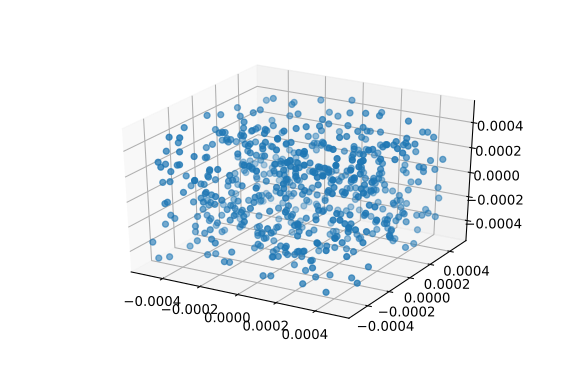
Since the data structures in Trajectory objects are comparably simple, it is easy to do custom plotting of particle simulation result data with visualization libraries, e.g. matplotlib. For example, particle positions can be easily depicted in a scatter plot with matplotlib:
import os
import numpy as np
import matplotlib.pyplot as plt
import IDSimPy.analysis.trajectory as tr


# open a (in this case legacy) hdf5 trajectory file:
hdf5_file = os.path.join('test','analysis','data', 'qitSim_2019_04_scanningTrapTest',
                                    'qitSim_2019_04_10_001_trajectories.hd5')

tra = tr.read_hdf5_trajectory_file(hdf5_file)


# extract positions of first recorded time step:
ts = traj_hdf5.get_positions(0)

# create a 3d scatter plot of the particle positions in the first time step:
x,y,z = ts[:,0],ts[:,1],ts[:,2]

fig = plt.figure()
ax = fig.add_subplot(111, projection='3d')
ax.scatter(x,y,z)
This yields something like
Particle trace plots
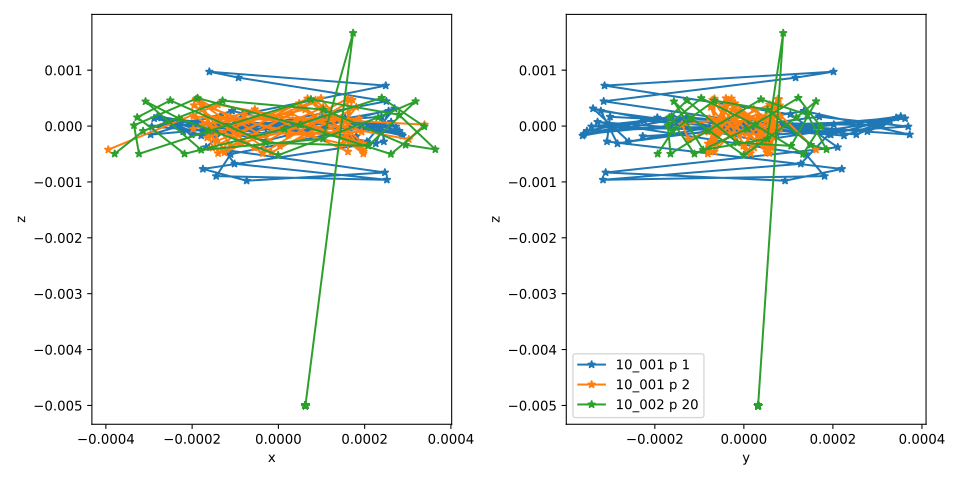
The traces of individual particles can be plotted in a flexible way with plot_particle_traces(). This function can plot individual particle traces from different trajectories in one figure, which allows the direct comparison of different particles.
The function renders the plot as PDF and takes the name of the result PDF file as first argument. The second argument, particle_definitions, defines the particles to plot. It is a tuple of tuples, which each defines the particles to plot for a Trajectory object. Each of those configuration lines consists of a Trajectory, a list of particle indices to plot, and a legend label for the series of particles defined by the line.
In the following example, particle_definition defines the particles 1 and 2 from trajectory tra_1 with the label 10_001 and particle 20 from trajectory tra_2 with the label 10_002:
import os
import IDSimPy.analysis.trajectory as tr
import IDSimPy.analysis.visualization as vis

# Read two (legacy) HDF5 trajectory files from the test files
dat_path = os.path.join('..','test','analysis','data','qitSim_2019_04_scanningTrapTest')
tra_1 = tr.read_hdf5_trajectory_file(os.path.join(dat_path,'qitSim_2019_04_10_001_trajectories.hd5'))
tra_2 = tr.read_hdf5_trajectory_file(os.path.join(dat_path,'qitSim_2019_04_10_002_trajectories.hd5'))

# Define parameters for plot
result_name = 'test_particle_plotting_01'
particle_definition = [
    (tra_1, (1, 2), "10_001"),
    (tra_2, 20, "10_002"),
]

# Plot
vis.plot_particle_traces(result_name, particle_definition)
The example yields something like
Particle scatter plots and animations
Scatter plots draw individual symbols for the simulated particles in a particle ensemble. Usually, the spatial position of the particle symbols in the coordinate system of the plot reflect the spatial position of the simulated particles. There are also different variants of this plot type, where the velocity of the simulated particles becomes a spatial dimension in the plot (phase space plots).
There is a high level plot function, which allows to generate generic scatter plot animations quickly and comparably conveniently. The high level functions are wrapper functions around the actual scatter plot rendering functions. The wrapper functions open the trajectory, generate the scatter animation and write it to a video file. The actual scatter plot rendering functions can also be used directly, e.g. if the resulting scatter animation should be processed further or reading a trajectory multiple times is inefficient.
High level scatter plot animation function
render_scatter_animation() provides a simple function to render scatter animations in an xy and xz projection. It takes the name of a simulation project as first argument, opens the trajectory file of that project and renders an animation into an mp4 file given as second argument. For example, specifying my_simulation as output name in an IDSimF solver will usually generate a trajectory file my_simulation_trajectories.hd5 which can be animated by calling render_scatter_animation() with my_simulation as first argument.
A minimal example of a scatter plot of an IDSimF simulation result would be
import os
import IDSimPy.analysis.visualization as vis


data_base_path = os.path.join('..','test','analysis','data')
project_name = os.path.join(
    data_base_path,
    'qitSim_2019_07_variableTrajectoryQIT',
    'qitSim_2019_07_22_001')

result_name = os.path.join('scatter_animation_simple')

vis.render_scatter_animation(project_name, result_name)
This example yields an animation similar to:
Particle Transparency
The transparency of the rendered particles can be controlled with the alpha parameter to render_scatter_animation(). Values closer to 1 means less transparent.
import os
import IDSimPy.analysis.visualization as vis

data_base_path = os.path.join('..','test','analysis','data')
project_name = os.path.join(
    data_base_path,
    'qitSim_2019_07_variableTrajectoryQIT',
    'qitSim_2019_07_22_001')

result_name = os.path.join('scatter_animation_alpha')
vis.render_scatter_animation(
    hdf5_variable_projectname, result_name,
    alpha=0.9)
Spatial Limits and Projection
The spatial limits of the plotted region in the spatial dimensions can be set easily with the xlim, ylim and zlim arguments to render_scatter_animation():
import os
import IDSimPy.analysis.visualization as vis

data_base_path = os.path.join('..','test','analysis','data')
project_name = os.path.join(
    data_base_path,
    'qitSim_2019_07_variableTrajectoryQIT',
    'qitSim_2019_07_22_001')

result_name = os.path.join('scatter_animation_custom_limits')

vis.render_scatter_animation(
    project_name, result_name,
    xlim=(-0.005, 0.005), ylim=(-0.005, 0.005), zlim=(-0.006, 0.006))
The projection of the right plot panel can be switched from x-z to y-z projection with the projection parameter. Currently the possible values for this parameter are
xy_xzfor x-z projection on the right panelxy_yzfor y-z projection on the right panel
hdf5_name = os.path.join('..','..','test','analysis','data',
                'trajectory_v3','capacitor_all_splat', 'capacitor_all_splat_static')

result_name = os.path.join('scatter_animation_projection_xy_xz')
vis.render_scatter_animation(
    hdf5_name, result_name,
    projection='xy_xz')
generates a plot with x-z projection on the right plot (which is the default)
while
result_name = os.path.join('scatter_animation_projection_xy_yz')
vis.render_scatter_animation(
    hdf5_name, result_name,
    projection='xy_yz')
generates a y-z projection
Rendering only of non terminated (active) particles
Only the active (non terminated) particles can be rendered by setting the only_active_particles parameter to True:
import os
import IDSimPy.analysis.visualization as vis

# rendering of active particles:
hdf5_name = os.path.join('..','..','test','analysis','data',
                'trajectory_v3','capacitor_all_splat', 'capacitor_all_splat_static')

result_name = os.path.join('scatter_animation_active_only')
vis.render_scatter_animation(
    hdf5_name, result_name,
    only_active_particles=True,
    xlim=(0.0, 0.1), ylim=(-0.02, 0.02), zlim=(-0.02, 0.02),
    interval=1, alpha=0.9)
Using colorization in scatter plots
The color of the rendered particle symbols can be used to display additional information, which is typically contained in particle attributes. If a name of a particle attribute is specified in the color_parameter argument, this particle attribute is used for colorization, as shown in the following example:
import os
import IDSimPy.analysis.visualization as vis


# define project and file names
data_base_path = os.path.join('test','analysis','data')
project_name = os.path.join(
    data_base_path,
    'reactive_IMS',
    'IMS_HS_reactive_test_001')

result_name = os.path.join('chemical_id_colorized')

# render scatter animation with 'chemical_id' as colorization parameter and 'Set1' as colormap:
vis.render_scatter_animation(project_name, result_name,
                            xlim=(0, 5e-3), ylim=(-8e-4, 16e-4),
                            alpha=0.8,
                            color_parameter='chemical_id',
                            cmap='Set1')
The example yields an animation similar to:
The chemical identity of the particles are discernible and it becomes visible, that the particles begin to separate.
It is possible to use a fully custom colorization for static trajectories: The color_parameter argument in render_scatter_animation() can also be a vector of custom numeric values, one per simulated particle, which is then used for colorization. The first example in the next section shows this with the low level scatter plot function.
Low level scatter plot functions
Technically, the “high level” plot function is a wrapper function around the actual scatter plot rendering functions animate_scatter_plot() and animate_variable_scatter_plot(). Both functions take a Trajectory object and a set of rendering / style options and generate an animation object. The function animate_scatter_plot() generates scatter plots from static trajectories, while animate_variable_scatter_plot() generates scatter plots from variable trajectory objects. The resulting animation objects can be saved to a video file.
Example: Coloring according to x start position
The principle is shown in the following example, which colors the particles according to their start position in x direction:
import os
import numpy as np
import IDSimPy.analysis.trajectory as tr
import IDSimPy.analysis.visualization as vis

# prepare filenames and read trajectory:
data_base_path = os.path.join('test','analysis','data')
trajectory_file_name = os.path.join(
    data_base_path,
    'reactive_IMS',
    'IMS_HS_reactive_test_001_trajectories.hd5')

tra = tr.read_hdf5_trajectory_file(trajectory_file_name)

result_name = os.path.join('scatter_plot_colorized.mp4')

# use start x position for colorization:
c_param = tra.get_positions(0)[:,0]

# generate scatter plot and save to mp4 file:
anim = vis.animate_scatter_plot(tra,
                                xlim=(0, 5e-3), ylim=(-8e-4, 16e-4),
                                alpha=0.8,
                                color_parameter=c_param,
                                cmap='plasma')

anim.save(result_name, fps=20, extra_args=['-vcodec', 'libx264'])
The example yields an animation similar to:
The colorization makes the axial diffusion of the particles discernible.
Example: Coloring of active (non terminated) particles
A second, slightly more sophisticated, example shows how the active, non terminated, particles can be marked with a custom color. This example uses a helping function is_active_particle(), which generates an array which marks active particles. Custom arbitrary marker values can be specified in this array for the active and terminated state With the true_val and false_val parameters for is_active_particle().
# coloring of active particles:
import os
import IDSimPy.analysis.visualization as vis
import IDSimPy.analysis.trajectory as tr

# read trajectory:
hdf5_name = os.path.join('..','..','test','analysis','data',
                'trajectory_v3','capacitor_all_splat','capacitor_all_splat_static_trajectories.hd5')

tra = tr.read_hdf5_trajectory_file(hdf5_name)

# generate array with termination / active state with custom values:
is_active = tr.is_active_particle(tra, true_val=0.4, false_val=0.9)

# use array for marking: (note the custom colormap specified with 'cmap' and the custom color range specified with 'crange'):
anim = vis.animate_scatter_plot(tra, color_parameter=is_active, cmap='plasma', crange=(0, 1), projection='xy_yz', xlim=(0.0,0.11), alpha=0.6)
anim.save('scatter_animation_active_marked.mp4', fps=20, extra_args=['-vcodec', 'libx264'])
Particle density plots and animations
Simple density plots
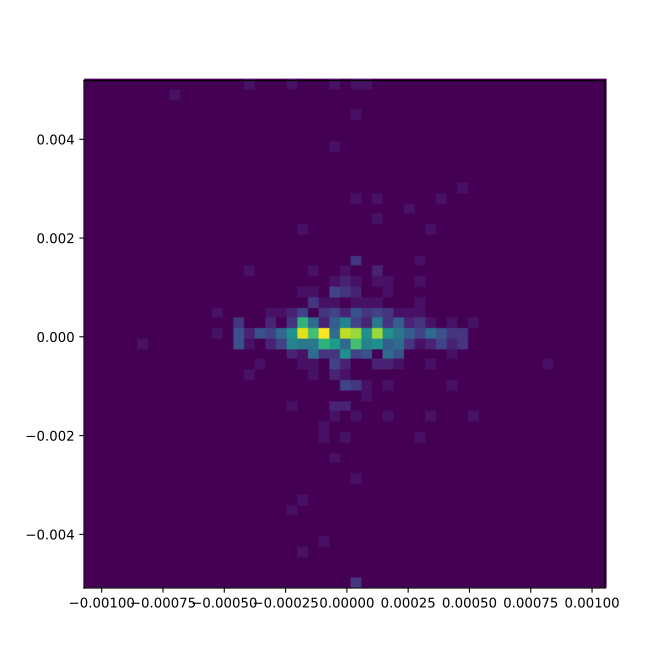
A density plot shows the density of simulated particles in the cells of a grid across a spatial domain. This allows to highlight the spatially resolved particle density in the region of interest, even when the individual symbols rendered by scatter plots are not providing any useful information anymore, e.g. due to very high numbers of simulated particles.
The function plot_density_xz() provides a density plot of the particle density in a projection on a xz plane:
import IDSimPy.analysis.visualization as vis

# tra is an imported Trajectory object
ts_index = 50
vis.plot_density_xz(tra, ts_index, axis_equal=False);
yields for example
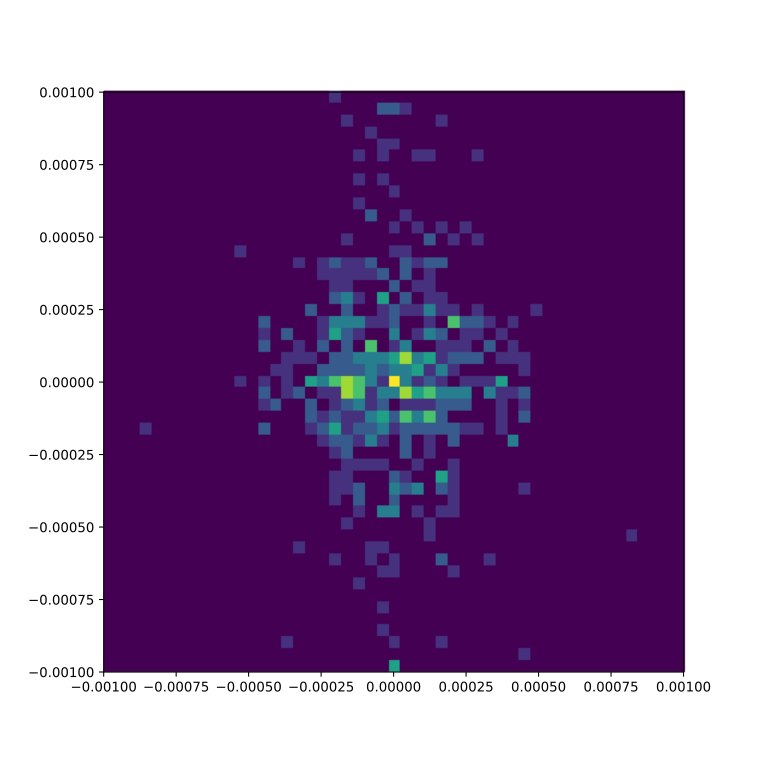
The figure size and the bins of the grid can be customized:
import numpy as np
import IDSimPy.analysis.visualization as vis

# the visualization lib can generate density plots:
ts_index = 50
vis.plot_density_xz(tra_1, ts_index,
                xedges=np.linspace(-0.001, 0.001, 50),
                zedges=np.linspace(-0.001, 0.001, 50),
                figsize=(8,8),
                axis_equal=True);
yields for example
Particle density animations
Animated visualizations often show the underlying dynamics in a particle ensemble much better than static plots. IDSimPy can render animated density plots.
High level density animation function
Similarly to the scatter plot functionality, there is a high level and a more low level function to render density animations. render_xz_density_animation() is a high level animation plot function which gives a quick way to look into the dynamics of an IDSimF result.
Similarly to render_scatter_animation(), the function takes the name of a simulation project as first argument, opens the trajectory file of that project and renders an animation into an mp4 file given as second argument. For example, specifying my_simulation as output name in an IDSimF solver will usually generate a trajectory file my_simulation_trajectories.hd5 which can be animated by calling render_xz_density_animation() with my_simulation as first argument.
Similarly to plot_density_xz(), additional parameters like the edges of the bins of the grid used for the local summation of particles can be changed:
data_base_path = os.path.join('test', 'analysis', 'data')
project_name = os.path.join(data_base_path, 'qitSim_2019_04_scanningTrapTest', 'qitSim_2019_04_15_001')

result_name = 'density_animation'

vis.render_xz_density_animation(
    project_name, result_name,
    xedges=100,
    zedges=np.linspace(-0.004, 0.004, 100),
    axis_equal=False, file_type='legacy_hdf5')
The edges of the bin grid (xedges, zedges) can be set directly as an array as presented in the example for zedges. If an integer value is given as argument for the edges, the full extend of the particle positions in the spatial direction is segmented into the specified number of equidistant bins.
The example yields an animation similar to
Low level density animation function
Besides the high level function described above, there is also a low level function animate_xz_density(), which is in fact used by the high level function for creating the animation. The low level function takes a trajectory object and returns an animation object, which can then be processed further, e.g. saved to a video file:
# open trajectory:
data_base_path = os.path.join('..', 'test', 'analysis', 'data')
trj_name = os.path.join(data_base_path, 'qitSim_2019_04_scanningTrapTest', 'qitSim_2019_04_15_001_trajectories.hd5')
tra = tr.read_hdf5_trajectory_file(trj_name)

# generate animation object:
anim = vis.animate_xz_density(
    tra,
    xedges=np.linspace(-0.001, 0.001, 50),
    zedges=np.linspace(-0.001, 0.001, 50),
    figsize=(10, 5))

# save animation to a video file:
result_name = os.path.join('density_animation_test_1.mp4')
anim.save(result_name, fps=20, extra_args=['-vcodec', 'libx264'])
This example yields an animation similar to
Note that the low level function is also capable of exporting single frames as images.
Comparative density animations
It is often useful to directly compare ions from different simulation runs or different ion groups in one simulation run. render_xz_density_comparison_animation() allows to render such comparative density animations.
Comparing ion density from two trajectories
As the following example shows, render_xz_density_comparison_animation() takes two simulation project names, selectors which ions to render in each trajectory and has a bunch of optional arguments which control the animation rendering:
import os
import IDSimPy.analysis.visualization as vis

# prepare two project names and result file name
dat_path = os.path.join('..','test','analysis','data','qitSim_2019_07_variableTrajectoryQIT')
pro_1_name = os.path.join(dat_path,'qitSim_2019_07_22_001')
pro_2_name = os.path.join(dat_path,'qitSim_2019_07_22_002')
project_names = [pro_1_name, pro_2_name]
result_name = 'comparative_density_animation'

# Render comparative density plot with all particles from both simulation projects rendered
vis.render_xz_density_comparison_animation(
    project_names, ['all', 'all'], result_name, n_frames=50, interval=1, s_lim=5e-3, n_bins=[100, 100],
    select_mode=None, annotation="", mode="log", file_type='hdf5')
This example generates an animation similar to
The difference between the simulation runs becomes obvious by this visualization method.
Comparing density of two ion groups within the same trajectory
render_xz_density_comparison_animation() is also often used to compare ion groups within the same trajectory. The following examples shows how to compare two groups of ions specified by their chemical ids:
import os
import IDSimPy.analysis.visualization as vis

reactive_ims_project_name = os.path.join(
                    'test', 'analysis', 'data', 'reactive_IMS', 'IMS_HS_reactive_test_001')

project_names = [reactive_ims_project_name, reactive_ims_project_name]
chem_ids = [0, 1]
result_name = 'reactive_ims_1'

vis.render_xz_density_comparison_animation(
    project_names, chem_ids, result_name, n_frames=30, interval=1,
    select_mode='substance', s_lim=[0, 5e-3, -1e-3, 2e-3], n_bins=[150, 40],
    annotation="", mode="log", file_type='hdf5')
It yields an animation similar to
The chemical reaction dynamics in the particle ensemble is clearly observable.